
You’re settling in for a late movie, video call with distant family, or an important work upload, and suddenly your internet drops. Your Wi-Fi icon vanishes or the dreaded loading circle spins endlessly. A quick reboot might bring it back, but an hour later, itâs gone again. This frustrating pattern of nighttime disconnections is one of the most commonâand solvableâhome internet problems. The key is that nighttime introduces unique stressors on your network that donât exist during the day. Letâs diagnose why your internet keeps disconnecting at night and walk through a series of real, actionable fixes.
Common Culprits: Why Nighttime is Prime Time for Disconnects
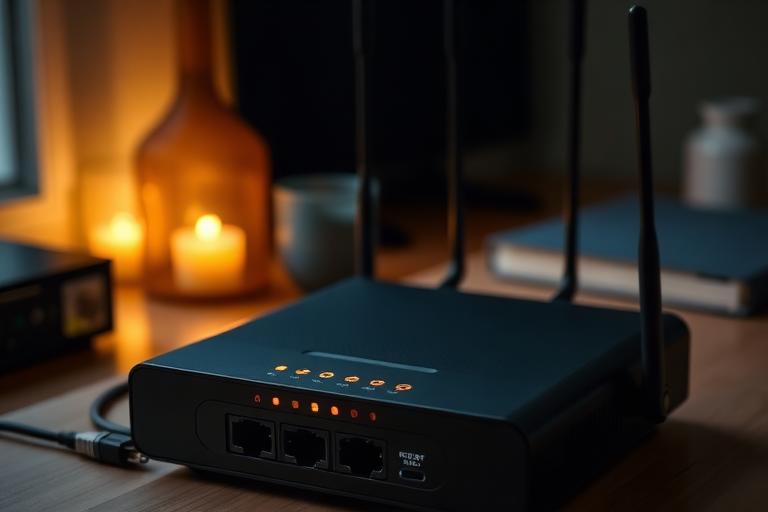
Your internet connection at night isn’t cursed; itâs responding to predictable factors. Understanding these causes is the first step to a permanent internet keeps disconnecting at night fix.
Network Congestion and Peak Hours
Think of your internet connection as a highway. During the day, traffic is moderate. At night, especially between 7 PM and 11 PM, everyone is homeâstreaming 4K video on the TV, gaming online, video chatting, and downloading large files. If youâre on a shared connection (like cable internet) or have a slow plan, this “rush hour” can overwhelm the bandwidth, causing slowdowns and dropouts.
ISP Maintenance or Throttling
Some Internet Service Providers (ISPs) schedule necessary maintenance or system updates during off-peak hours, which for them is often late at night. While not always announced, this can cause brief outages. More contentious is the practice of network management or throttling, where an ISP may intentionally slow down certain types of traffic (like torrenting or heavy streaming) during congestion, which can feel like a disconnection.
Failing or Overheating Hardware
Your modem and router are small computers that run 24/7. Heat is their enemy. Over time, dust buildup or poor ventilation can cause them to overheat. After a long day of use, a hot modem may start to malfunction precisely when you need it most, leading to reboots or lost connections. An aging device with worn-out components is also more prone to failure under stress.
Wireless Interference and Signal Degradation
At night, your homeâs environment changes. You turn on more lights (some LED bulbs can emit radio frequency interference), use kitchen appliances, or a neighbor might fire up their own Wi-Fi-intensive activities. Additionally, construction materials in walls and floors can weaken signals, so a device that had a weak-but-stable connection during the day might lose it entirely at night, creating a situation where your device is Wi-Fi connected but not working properly.
Actionable Fixes to Stop the Nighttime Drops
Now that we know the likely causes, here are the steps to take, starting with the simplest and moving to more advanced solutions.
1. The Foundational Reboot & Check
Never underestimate the power of a proper reboot. This clears the memory caches in your equipment and can resolve temporary glitches.
- Unplug your modem and router from power.
- Wait at least 30 seconds. This is crucial to let capacitors discharge and for your ISP to fully deregister the modem.
- Plug in the modem first and wait for all its status lights to become solid (not blinking). This can take 1-2 minutes.
- Now plug in your router and wait for it to fully boot up.
2. Diagnose Overheating and Hardware Health
Place your hand on your modem and router. Are they uncomfortably hot to the touch?
- Improve Ventilation: Move them to an open space, away from other electronics, books, or curtains. Ensure all vents are clear of dust (use compressed air to clean gently).
- Check for Aging Hardware: Log into your modem’s interface (usually by typing 192.168.100.1 or 192.168.0.1 into a browser) and check its logs for repeated “T3 timeout” or “SYNC” errors. Frequent errors are a classic sign of a dying modem or a line problem.
- Contact Your ISP: If hardware is old (over 3-4 years) or shows errors, call your ISP. They can often run a remote diagnostic on the modem and line quality, and may replace faulty equipment for free.
3. Optimize Your Wi-Fi Network
For wireless dropouts, optimization is key. First, identify if the problem is your Wi-Fi (devices lose connection to the router) or your actual internet (all devices, even wired, lose WAN connection).
- Change Your Wi-Fi Channel: Use apps like Wi-Fi Analyzer (Android) or Airport Utility (iPhone) to see which channels your neighbors’ networks are using. Log into your router’s admin panel and switch your 2.4 GHz band to Channel 1, 6, or 11, and your 5 GHz band to a higher, less-congested channel.
- Reposition Your Router: Place it centrally, elevated, and away from large metal objects, fish tanks, and brick walls. Avoid basements and closets.
- Separate SSIDs (Network Names): If your router supports it, split your 2.4 GHz and 5 GHz networks into separate named networks (e.g., HomeWiFi-2G and HomeWiFi-5G). Connect stationary devices (TVs, consoles) to 5 GHz and older/smart home devices to 2.4 GHz to reduce connection issues.
4. Rule Out ISP Issues and Manage QoS
If fixes so far haven’t worked, the issue may be with your connection to the wider internet.
- Test with a Wired Connection: Temporarily connect a laptop directly to your modem with an Ethernet cable during peak hours. If the internet remains stable wired but not wireless, the problem is your home Wi-Fi, not your ISP.
- Check for ISP Outages: Use your phoneâs mobile data to check your ISPâs status page or social media (like Twitter/X) for reported outages in your area.
- Enable QoS (Quality of Service): In your router’s settings, look for QoS. Enable it to prioritize traffic for specific activities (like video calls or gaming) or specific devices. This prevents one bandwidth-heavy activity from hogging all the resources.
5. Advanced: Schedule Router Reboots and Update Firmware
For a âset it and forget itâ solution, automate maintenance.
- Auto-Reboot Schedule: Many modern routers allow you to schedule a daily reboot (e.g., at 3 AM). This clears any memory leaks and cools the system, ensuring a fresh start each day.
- Update Router Firmware:
