
A phone that refuses to charge, charges painfully slowly, or randomly disconnects is more than an inconvenience; it cuts the lifeline to our communication, work, and entertainment. Before you panic about an expensive repair or conclude your battery is dead, know that the vast majority of charging issues stem from simple, everyday causes that you can often fix yourself in minutes. This guide will walk you through the logical steps to diagnose and solve the most common culprits, saving you time, money, and frustration.
The Usual Suspects: Checking Your Cable, Adapter, and Port
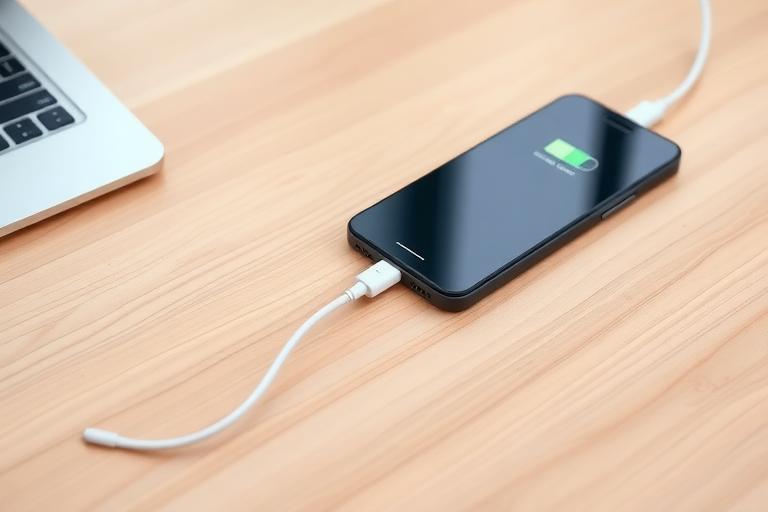
Your charging setup is the highway for power to reach your battery. A single point of failure here will stop everything. Let’s methodically rule out these components.
Inspect and Test Your Charging Cable
Charging cables are the weakest link. Daily bending, twisting, and pet-chewing take their toll. Look for:
- Visible damage: Kinks, fraying, exposed wires, or bent connectors.
- Dirt and debris in the connector: Lint from pockets is a major culprit, especially with USB-C and Lightning ports. It compacts into the end of the cable, preventing a firm connection.
The definitive test is to try a different, known-good cable. If charging works with a new cable, you’ve found your problem. Wireless charging can also be a good diagnostic tool hereâ—if your phone charges wirelessly but not via cable, the issue is almost certainly with your cable, adapter, or port.
Examine Your Wall Adapter (The “Brick”)
The wall adapter matters more than many realize. A faulty or underpowered one can cause slow or intermittent charging.
- Check for physical damage or overheating (discoloration, melting smell).
- Ensure it’s plugged firmly into the outlet.
- Try a different adapter, preferably the one that came with your phone or a certified high-wattage model from a reputable brand.
Android users with USB-C fast charging or iPhone users with newer models need adapters that support specific protocols (like USB Power Delivery). Using an old, low-power adapter from an older device will result in painfully slow charging.
The Critical Step: Clean Your Phone’s Charging Port
This is the single most effective phone not charging fix for many people. Over months, pocket lint and dust become tightly packed in the bottom of the port, physically blocking the cable from seating fully.
- Power off your phone for safety.
- Shine a bright light into the port. Do you see a wall of grey/brown debris?
- Use a non-metallic tool like a plastic toothpick, SIM eject tool, or specialized plastic dental pick. Do not use metal like a paperclip, as it can short-circuit the pins.
- Gently scrape around the edges and the central pin area, brushing the debris outward. Youâ’d be surprised how much can come out.
- Finish with a quick blast of compressed air (hold the can upright to avoid moisture).
After cleaning, plug the cable in. It should click in firmly without any wobble. A loose connection almost always means there’s still debris present.
Software Glitches and Phone Behavior
Sometimes, the issue isn’t physical. Temporary software bugs can make your phone think it’s not charging properly, even when hardware is fine.
Perform a Phone Restart
It’s cliché for a reason: a simple restart clears temporary system caches and errors that might be interfering with the battery management system. This is your first software phone not charging solution.
Check for Overheating and Background Activity
Both Android and iPhone have safety protocols that severely slow or stop charging if the device gets too hot. If your phone is hot to the touch while charging, unplug it and let it cool down. Consider your environmentâ—charging on a soft bed or in direct sunlight traps heat. Also, close any intensive apps or games running in the background. If you’re dealing with persistent phone overheating while charging, that points to a deeper app or hardware issue.
Update Your Operating System
Software updates often include fixes for battery and power management bugs. Go to Settings > General > Software Update on iPhone, or Settings > System > System update on Android (wording may vary). Installing the latest OS can resolve mysterious charging problems.
Diagnosing the Battery and Device Itself
If all external components check out, we must look at the phone’s internal state.
Check Battery Health
- iPhone (iOS 11.3+): Go to Settings > Battery > Battery Health & Charging. Look at “Maximum Capacity.” Below 80% means the battery is significantly degraded and may not hold a charge well, leading to unexpected shutdowns. This is a key metric for phone not charging problem diagnosis.
- Android: There’s no universal menu, but you can check approximate health by dialing
*#*#4636#*#*on many phones to access testing menus, or by using reputable third-party apps like AccuBattery.
A degraded battery might charge to 100% but drop rapidly or cause the device to shut off under load.
Boot into Safe Mode (Android)
If your Android phone charges normally in Safe Mode, a third-party app you installed is likely causing the phone not charging fix iphone issue (though iPhone has a similar process called “Restart Without Background Apps”). Safe Mode temporarily disables all downloaded apps. The method to enter it varies by manufacturer but often involves holding the power button, then long-pressing the “Power off” option until the Safe Mode prompt appears.
Try a Different Power Source
Rule out a problem with your wall outlet or car charger by trying another outlet in your home, a computer USB port, or a portable power bank. If charging works from another source, the issue is with your original outlet or charger.
When to Seek Professional Repair
If you’ve exhausted all the checks above and your phone still won’t charge, the issue is likely internal.
- Water Damage: Even if your phone is “water-resistant,” submersion or moisture ingress can corrode charging port pins or internal circuits. Look for a liquid contact indicator (LCI) in the SIM tray (usually a white strip that turns red).
- Physical Damage: A dropped phone can have a loose internal battery connection or a damaged charging port soldered to the logic board.
- Failed Battery or Charging Circuit: These are internal components that require microsoldering or battery replacement by a skilled technician.
Understanding the likely phone not charging repair cost can help you decide. A simple battery replacement typically costs between $50 and $100. A logic board or

For more details, see Apple’s official charging troubleshooting guide.