Wi-Fi Connected But Not Working? Here’s Where to Start
Itâ’s one of the most frustrating modern tech dilemmas: your device shows full Wi-Fi bars, apps and websites just won’t load. You have a “wifi connected but no internet access fix” scenario on your hands. This state, often called being “half-connected,” means your device is linked to the router but the router can’t reach the broader internet. The good news is you can almost always solve it yourself. Letâ’s walk through a logical, step-by-step process to get you back online.
The Golden Rule: Diagnose the Problem Scope
Before you start changing settings, answer this one crucial question: Is it just one device, or are all your devices offline? This single piece of information tells you where to focus your efforts.
If ALL Devices Are Offline
The problem is almost certainly with your router or Internet Service Provider (ISP). Skip to the router and ISP troubleshooting section.
If Only ONE Device Is Offline
The problem is isolated to that specific phone, laptop, or tablet. Start with the device-specific fixes below.
Fixes for a Single Device (Phone, Laptop, Tablet)
When your problematic device is the odd one out, these steps will help isolate and solve the issue.
1. The Universal First Step: Restart and Reconnect
Yes, it’s cliché, but it works. Turn the device’s Wi-Fi off for 10 seconds, then back on. If that fails, restart the device completely. This clears out corrupted network caches and resets the network adapter. After restarting, forget the network and reconnect by entering the password fresh. This often solves stubborn authentication errors.
2. Operating System-Specific Network Resets
Each platform has built-in tools to refresh network components without a full reboot.
- Windows 10/11: Go to Settings > Network & Internet > Advanced network settings > Network reset. This will reinstall your network adapters.
- macOS: Go to System Preferences > Network, select Wi-Fi, click the minus (-) button to remove the service, then add it back with the plus (+) button.
- Android: Go to Settings > System > Reset options > Reset Wi-Fi, mobile & Bluetooth. This clears saved networks.
- iPhone/iPad: Go to Settings > General > Transfer or Reset [Device] > Reset > Reset Network Settings.
3. Check for IP Address Conflicts
Sometimes two devices on the same network accidentally get the same IP address, causing a conflict. You can try releasing and renewing your IP address. On Windows, open Command Prompt as Administrator and type ipconfig /release then ipconfig /renew. On a phone, simply forgetting and rejoining the network does the same thing. For a more permanent wifi connected but no internet access fix on Windows 11 or 10, you can also try setting a static IP address temporarily to see if the conflict disappears.
Fixes When ALL Devices Are Offline (Router & ISP Issues)
When your entire network is down, the scope of the problem narrows. Follow these steps methodically.
1. Power Cycle Your Router and Modem
Unplug both your modem (the box that brings internet in) and your router (the box that broadcasts Wi-Fi) from power. Wait 60 seconds. Plug the modem back in first, wait for all its status lights to stabilize (usually 1-2 minutes). Then plug the router back in and wait for its lights to show normal. This allows both devices to establish a clean handshake with your ISP.
2. Inspect the Router’s WAN/Internet Light
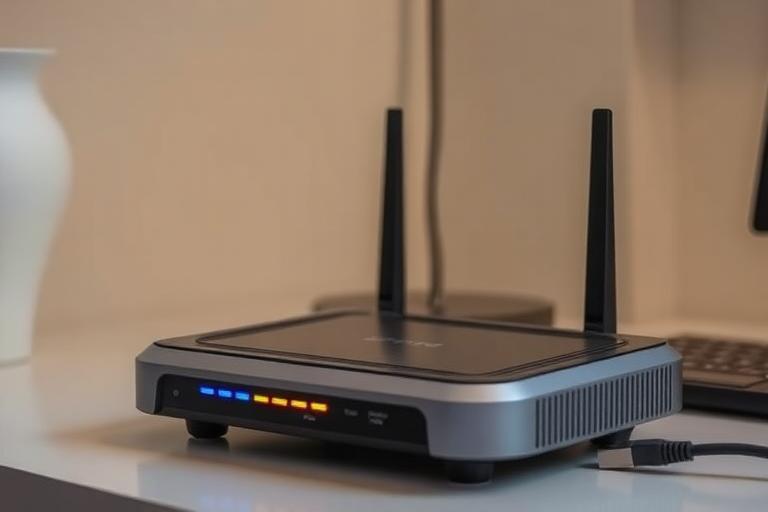
On your router, find the light labeled “Internet,” “WAN,” or “Globe.” If this light is solid or blinking normally (check your manual), the router sees the modem. If it’s off or flashing red/orange, the issue is between your modem and the outside world. Check all cable connections from the wall to the modem and from the modem to the router.
3. Contact Your Internet Service Provider (ISP)
If the router’s internet light is off, there may be an outage in your area or a problem with your line. Call your ISP. They can often check your connection remotely and tell you if there’s an outage. They can also reprovision your modem, which is like a remote reboot.
Advanced Fixes to Rule Out Software Problems
Sometimes, software interferes with your connection. These steps can help rule that out.
1. Temporarily Disable Firewall and Antivirus
Security software can sometimes incorrectly block all internet access. Temporarily turn off your Windows Defender Firewall or third-party antivirus suite to test if it’s the culprit. Remember to turn it back on immediately after testing.
2. Change Your DNS Server
Your DNS (Domain Name System) translates website names (like digitalpedia.digital) into IP addresses. If your ISP’s DNS is slow or down, you’ll experience timeouts. Changing to a public DNS like Google’s (8.8.8.8 and 8.8.4.4) or Cloudflare’s (1.1.1.1) is safe, free, and often faster.
- On Windows: Go to Control Panel > Network and Sharing Center > Change adapter settings. Right-click your Wi-Fi connection > Properties > Internet Protocol Version 4 (TCP/IPv4) > Properties. Select “Use the following DNS server addresses.”
- On Android/iOS: Go to your Wi-Fi settings, tap the info (i) icon next to your network, and look for a “Configure DNS” option to set it manually.
3. Update Your Router’s Firmware
An outdated router can cause unstable connections. Log into your router’s admin panel (usually by typing 192.168.1.1 or 192.168.0.1 into a browser) and check for a firmware update in the Administration or Advanced settings. This can patch bugs that cause dropouts. If youâ’ve noticed your internet dropping at night, outdated firmware is a common suspect.
When All Else Fails: Hard Reset and Hardware Check
If you’ve tried everything and still have no internet, these last-resort steps can help.
- Factory Reset Your Router: Use a paperclip to press the small recessed “reset” button on your router for 10-15 seconds. This will wipe all custom settings (like your Wi-Fi name and password), so be prepared to set it up from scratch.
- Bypass Your Router: Connect a computer directly to your modem with an Ethernet cable. If you get internet, the problem is your router (it may be failing). If you still have no internet, the problem is with your modem or ISP line.
- Check for Physical Interference: New electronics, thick

Related reading: check out this guide on phones that won’t charge properly.
For more details, see Microsoft’s Wi-Fi troubleshooting documentation.