Software Errors & Simple Solutions: A Practical Guide to Fixing Common Tech Problems
Few things are more frustrating than seeing an unexpected error message pop up on your screen. Whether it’s a crashing app, a frozen program, or a mysterious “Something went wrong” notification, software errors can interrupt work, delay projects, and cause unnecessary stress.
The good news? Most software problems are not as complicated as they seem. With a basic understanding of common causes and simple troubleshooting steps, you can fix many issues yourself—without needing advanced technical knowledge.
In this guide, we’ll break down common software errors, explain why they happen, and provide simple, effective solutions you can apply right away.
Why Software Errors Happen
Software errors occur when a program cannot perform a task correctly. This can happen due to:
-
Outdated software
-
Corrupted files
-
Incompatible system updates
-
Insufficient memory (RAM)
-
Conflicting applications
-
Malware infections
Understanding the root cause helps you apply the right solution instead of guessing.
App Crashes and Freezing Problems

When an app suddenly closes or stops responding, it’s usually due to memory overload or temporary glitches.
Simple Solutions
1. Wait a Few Seconds
Sometimes the program is processing a heavy task and just needs time.
2. Force Close the App
Use Task Manager (Windows) or Force Quit (Mac) to close the unresponsive application.
3. Restart Your Device
Restarting clears temporary memory and resolves minor software conflicts.
4. Update the App
Developers release updates to fix bugs and improve stability.
If the issue continues, uninstall and reinstall the app.
“Not Enough Storage” Errors
Storage-related errors are common on both computers and smartphones.
Why It Happens
-
Too many installed apps
-
Large media files
-
Temporary system files
-
Automatic downloads
Simple Solutions
-
Delete unused applications
-
Remove duplicate photos and videos
-
Empty the recycle bin
-
Clear app cache
-
Move large files to cloud storage or external drives
Keeping at least 15–20% of storage free improves performance.
Software Update Failures
Sometimes updates fail to install or get stuck halfway.

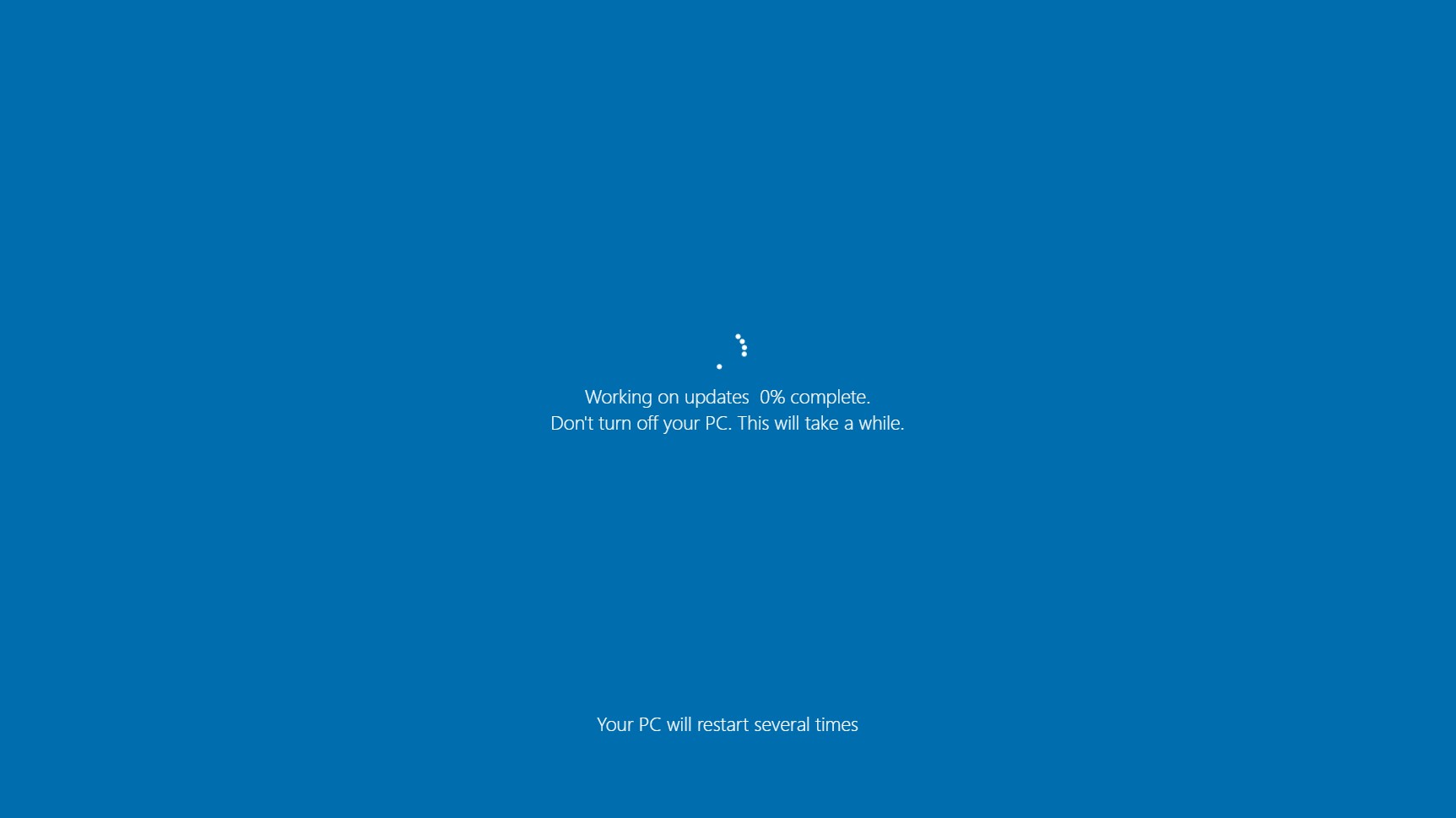

Why Updates Fail
-
Weak internet connection
-
Low battery
-
Insufficient storage
-
Corrupted update files
Simple Fixes
-
Connect to stable Wi-Fi
-
Plug your device into power
-
Free up storage space
-
Restart and retry the update
If problems persist, check official support documentation for your operating system.
Compatibility Errors
Sometimes software doesn’t run properly after installing a new operating system.
Common Causes
-
Old software version
-
Unsupported drivers
-
Hardware limitations
How to Fix
-
Update the software to the latest version
-
Install updated drivers from the manufacturer’s website
-
Use compatibility mode (available in some operating systems)
If the program is outdated and unsupported, consider switching to an alternative application.
Internet-Related Software Errors
Many apps depend on internet connectivity. When the connection drops, errors appear.
Quick Fixes
-
Restart your router
-
Check network settings
-
Turn off VPN temporarily
-
Reset network settings if needed
A weak or unstable connection often triggers login failures and loading issues.
Corrupted Files and Missing Data
If files won’t open or show strange errors, they may be corrupted.
Causes
-
Improper shutdown
-
Virus infection
-
Interrupted downloads
Solutions
-
Restore from backup
-
Re-download the file
-
Run antivirus software
-
Use built-in repair tools (if available)
Regular backups prevent permanent data loss.
Blue Screen or System Crash Errors
Serious system crashes, like blue screen errors, usually indicate deeper system problems.
Possible Causes
-
Faulty hardware
-
Driver conflicts
-
Malware
-
Overheating
What to Do
-
Restart your device
-
Check for driver updates
-
Run system diagnostics
-
Scan for malware
If crashes happen repeatedly, seek professional technical support.
Preventing Future Software Errors
Prevention is always better than repair.
Best Practices
-
Keep your operating system updated
-
Install apps only from trusted sources
-
Avoid running too many programs simultaneously
-
Regularly clean temporary files
-
Back up important data
Simple maintenance reduces the risk of major issues.
Frequently Asked Questions (FAQ)
1. Why do apps suddenly stop working?
Apps may crash due to memory overload, outdated versions, or temporary system glitches.
2. Is it safe to reinstall software?
Yes. Reinstalling often fixes corrupted files and resolves persistent bugs.
3. How often should I update my software?
Install updates whenever they are available, as they contain important security and performance improvements.
4. Can malware cause software errors?
Yes. Malware can interfere with normal system processes and cause unusual behavior.
5. When should I seek professional help?
If your system repeatedly crashes, shows hardware error messages, or fails to boot, professional assistance is recommended.
Final Thoughts
Software errors can feel overwhelming, but most are manageable with simple troubleshooting steps. By understanding common causes—such as outdated software, low storage, or weak internet connections—you can apply quick fixes and restore normal functionality.
Regular updates, cautious downloads, and routine maintenance go a long way in preventing future issues. With patience and a structured approach, you can handle everyday software problems confidently and keep your devices running smoothly.