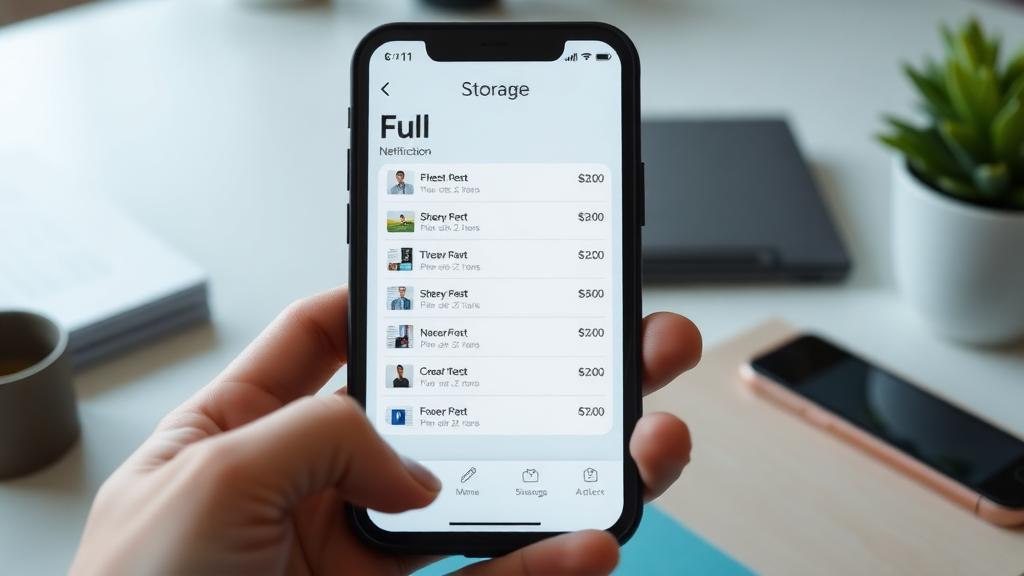
Your phoneâ’s endless notifications about low storage space are a modern-day annoyance. You canâ’t take photos, update apps, or download files, and it feels like your digital life is grinding to a halt. This panic-inducing message doesnâ’t mean you must buy a new device or delete years of memories. Instead, itâ’s a signal to clean house intelligently. You can reclaim gigabytes of spaceâ—even make your phone faster in the processâ—by following a series of safe, non-destructive steps that protect your important data while clearing out the digital clutter.
Understand Why Your Phone Storage is Full
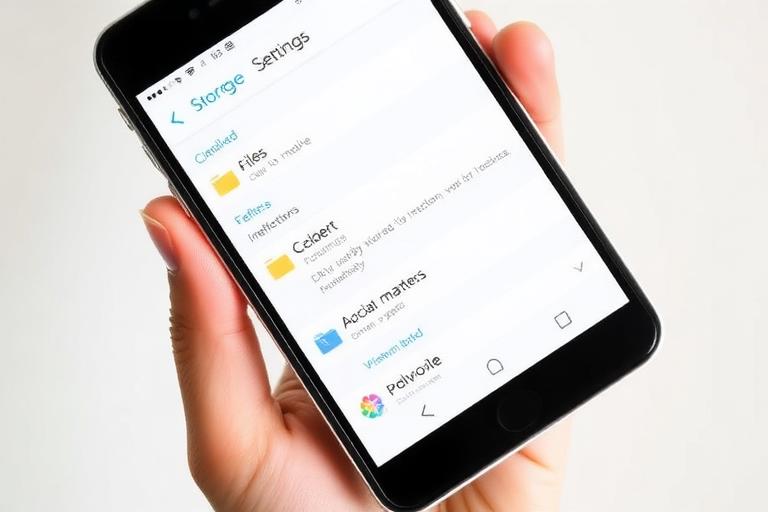
Before you start deleting, itâ’s helpful to know whatâ’s eating up all your space. Modern phones are filled with more than just your photos and apps.
- System Files & Cache: The operating system (iOS or Android) and apps store temporary data (cache) to speed up performance. Over time, this cache can balloon to several gigabytes.
- Photos & Videos: This is the most common culprit. A few minutes of 4K video can consume more space than hundreds of documents.
- Messaging Apps: Apps like WhatsApp and Telegram automatically save photos and videos you receive. These hidden media files can occupy an astonishing amount of storage.
- App Data and Documents: Offline maps, music, podcasts, game files, and documents saved within apps all add up silently.
Finding your storage breakdown is the first step. On an iPhone, go to Settings > General > iPhone Storage. On an Android phone, go to Settings > Storage. The visual breakdown will show you exactly where to focus your efforts.
Step 1: The Essential Offload to the Cloud (Your Data Backup)
Safety first. Before any major cleanup, ensure your precious photos, contacts, and messages are backed up. This is your insurance policy.
- Photos and Videos: Use Google Photos (Android/iPhone), iCloud Photos (iPhone), or a service like Dropbox or OneDrive. Set them to â“Backup & Sync.â” Once confirmed, you can safely use the â“Free up spaceâ” feature within these apps to remove local copies while keeping them in the cloud.
- Full Device Backup: For iPhone, use iCloud Backup (Settings > [Your Name] > iCloud > iCloud Backup) or back up to a computer via Finder (Mac) or iTunes (Windows). For Android, use Google One backup (Settings > Google > Backup).
Step 2: The Nuclear Option for Apps: Offload, Don’t Delete
Apps can be huge, but deleting them means losing all your data within them (game progress, unsaved documents, login info). Use these smarter methods:
- iPhone – Offload App: This brilliant feature removes the app binary but keeps all its documents and data. Reinstall the app, and everything is as you left it. Go to Settings > General > iPhone Storage, tap any large app, and choose â“Offload App.â”
- Android – Clear Cache/Data: For Android, start by clearing an appâ’s cache (temporary files). Go to Settings > Apps, select an app, tap Storage & Cache, then â“Clear Cache.â” If the app is still huge, you can tap â“Clear Storageâ” or â“Manage Space,â” but know this will delete your logins and saved data within that app.
Target the Biggest Storage Hogs
In your storage settings, sort apps by size. Focus on these common offenders:
- Streaming Apps (Netflix, Spotify, Podcasts): They download movies, songs, and episodes for offline viewing. Go into each appâ’s settings to clear downloads or manage offline content.
- Social Media (Instagram, TikTok, Facebook): They cache every video you scroll past. Regularly clear their cache from within the app settings or your phoneâ’s app management menu.
- Navigation Apps (Google Maps, Waze): If youâ’ve downloaded offline map regions, they can be several GBs. Review and delete old regions you no longer need.
Step 3: Declutter Photos and Messages Smartly
You donâ’t need to manually sort through thousands of photos.
- Use â“Reviewâ” Features: Google Photos has a â“Review & deleteâ” section for blurry photos and screenshots. iPhoneâ’s Photos app can identify duplicates and suggest ones to clean up.
- Delete â“Recently Deletedâ” Albums: Both iPhone and Android have a safety net album where deleted photos live for 30 days. You must empty this album to actually free up the space. Go to your Photos app and look for â“Recently Deletedâ” or â“Trash.â”
- Manage Message Attachments: In iPhone Messages, you can filter by Photos, Links, etc., and bulk delete. On Android, apps like WhatsApp have a dedicated â“Storage and dataâ” management tool to review and delete large files in chats.
Step 4: Clear System Junk and Hidden Files
This is the deep clean that often yields surprising amounts of space.
- Browser Cache: Chrome, Safari, and other browsers store website data. Clear it in your browserâ’s settings under â“Privacyâ” or â“History.â”
- Download Folder: Often overlooked, this folder is full of PDFs, installation files, and images you saved once and forgot. Use your phoneâ’s Files or File Manager app to scan and clean it out.
- Carrier Services & OEM Bloatware: Some Android phones come with pre-installed apps from the manufacturer or carrier you never use. While you often canâ’t delete them completely, you can usually â“Disableâ” them and clear their data, preventing them from updating or storing files.
If your phone running slow is part of the problem, clearing this system junk can provide a noticeable speed boost as well.
Step 5: Adopt Habits That Prevent Future Storage Panic
Once youâ’ve freed up space, a few simple habits will keep it that way.
- Set Up Automatic Photo Upload: Enable auto-upload in your cloud photo service and set a monthly reminder to â“Free up spaceâ” on your device.
- Regular App Audits: Every few months, check your storage breakdown and offload or clear cache for apps you havenâ’t used in a while.
- Check Before You Download: Be mindful of downloading entire Netflix series or Spotify playlists. Enjoy streaming when on Wi-Fi to avoid filling local storage.
- Adjust Camera Settings: If you rarely print posters, consider shooting videos in 1080p instead of 4K. This dramatically reduces file sizes.
Cons

For more details, see Google’s guide on freeing up Android storage.