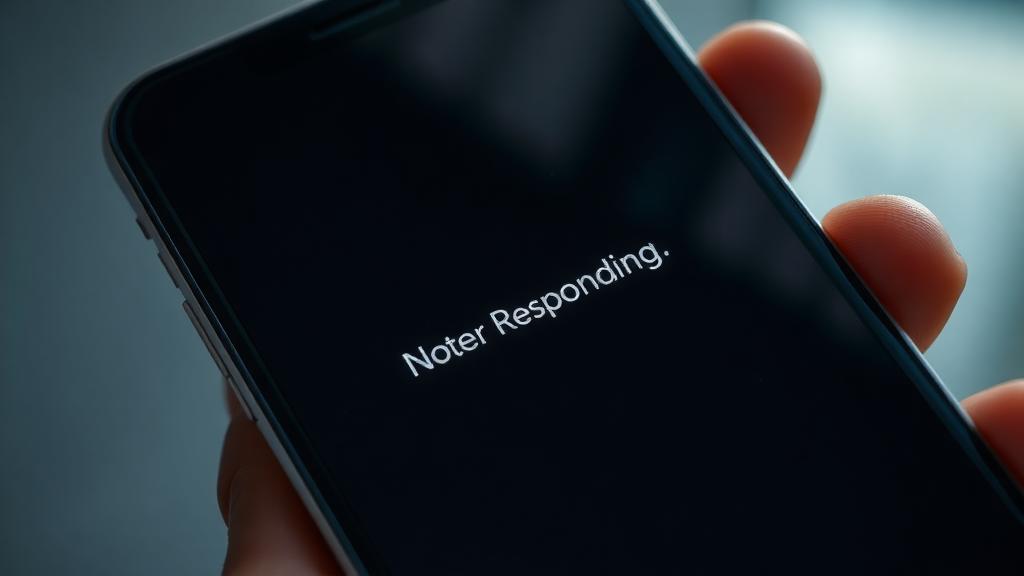
That dreaded “App Not Responding” or “Program Not Responding” message is more than just a frustrating notificationâit’s your computer or phone telling you that a software process has become unresponsive. The application has effectively stopped communicating with the operating system, often because it’s stuck in a loop waiting for a resource that never becomes available. But before you panic or slam your mouse in frustration, know this: the vast majority of these errors can be resolved with a few systematic app not responding how to fix troubleshooting steps. This guide will explain whatâs happening behind the scenes and walk you through practical, actionable fixes for Windows, macOS, Android, and iPhone.
What Does âNot Respondingâ Actually Mean?

When an app freezes and shows as âNot Responding,â it has entered whatâs known as a âhungâ state. The application is still running, but its main threadâthe part of the program that handles the user interface (UI)âis no longer processing instructions. This can happen because:
- Resource Bottleneck: The app is waiting for a chunk of memory, a processor cycle, or access to a file that’s tied up by another process.
- Software Bug: An infinite loop or flawed piece of code within the app prevents it from completing its task.
- System Overload: Your device is running too many programs at once, exhausting its available RAM or CPU power.
- Corrupted Data: The appâs cache or a crucial temporary file has become corrupted, confusing the program.
- Outdated Software: The app is incompatible with a recent update to your operating system or a key driver.
The good news is the operating system detects this hang and gives you a chance to intervene, rather than leaving you with a totally frozen screen.
Immediate First Aid: Getting Control Back
Before any deep diagnosis, your first move is to regain control of your device. Hereâs how to do it safely.
On Windows: Task Manager is Your Best Friend
For a âProgram Not Responding How to Fix Without Closingâ first attempt, you might be able to wait it out for 10-15 seconds. If not:
- Press Ctrl + Shift + Esc to open the Task Manager directly.
- Find the frozen program in the âProcessesâ tab. It will often say âNot respondingâ in the Status column.
- You can try right-clicking it and selecting âSwitch toâ to see if it wakes up.
- If that fails, select it and click âEnd task.â This forces the program to close.
On macOS: Force Quit
- Click the Apple menu () in the top-left corner and select âForce Quitâ¦â You can also press Command + Option + Esc.
- In the Force Quit Applications window, select the frozen app.
- Click âForce Quit.â Confirm if prompted.
On Android: The Wait or Force Stop Dilemma
Android will show âApp isnât responding. Wait / OK.â
- Tap âWaitâ: Give the app a moment more time. Sometimes it recovers.
- Tap âOKâ: This closes the app. For a more definitive closure, go to Settings > Apps, select the app, and tap âForce stop.â
On iPhone/iPad: The Swipe-Up Close
iOS rarely shows a formal message. If an app is completely frozen:
- Swiftly swipe up from the bottom of the screen (or press the Home button twice) to enter the app switcher.
- Swipe the frozen appâs preview upward and off the top of the screen to close it.
- Reopen it from the Home Screen.
Systematic Solutions to Prevent âApp Not Workingâ Errors
After dealing with the immediate crisis, follow these steps to stop the problem from recurring.
1. Restart Your Device â The Universal Fix
It sounds cliché, but restarting clears out temporary memory (RAM), stops background processes, and cleans the slate. Itâs the single most effective step for âapp not working how to fixâ scenarios and often solves the problem outright.
2. Update Everything
Outdated software is a prime culprit. Perform these updates in order:
- The Problematic App: Check its listing in the Google Play Store, Apple App Store, or the developerâs website.
- Your Operating System: Install the latest updates for Windows Update, macOS Software Update, Android, or iOS.
- Device Drivers (Windows): Especially update graphics and chipset drivers via Device Manager or the manufacturerâs website.
3. Free Up System Resources
Lack of RAM or storage space is a common cause.
- Close Unused Tabs & Programs: Every browser tab and background app consumes memory.
- Check Storage: Ensure you have at least 10-15% free space on your hard drive or phone. Delete old files or move them to cloud storage.
- Use Activity Monitor/Task Manager: Look for processes using unusually high CPU or Memory and investigate if they are necessary.
4. Clear the Appâs Cache and Data
A corrupted cache is a frequent offender.
- Android: Go to Settings > Apps, select the app, tap âStorage & cache,â then âClear Cache.â If problems persist, try âClear Storageâ or âClear Dataâ (warning: this resets the app).
- iPhone: Offload the app (Settings > General > iPhone Storage, tap the app, select âOffload Appâ), then reinstall it. This keeps your data but freshens the app files.
- Windows/macOS: Look in the appâs settings/preferences for a âClear Cacheâ option, or search online for the specific cache location for that program.
5. Check for Conflicting Software
Security software (antivirus, firewalls) or system utilities can sometimes block an appâs normal operation. Try temporarily disabling non-essential security software to see if the problem stops. Also, consider if the issue started after installing another new program.
Advanced Troubleshooting When Problems Persist
If the app still freezes after the steps above, itâs time to dig deeper.
Reinstall the Application
A clean install removes all corrupted files and settings. First, uninstall the app completely, then restart your device, and finally download and install the latest version fresh from the official source. This often fixes obscure âandroid apps not responding how to fixâ issues.
Scan for Malware
Malicious software can interfere with normal app operation.
