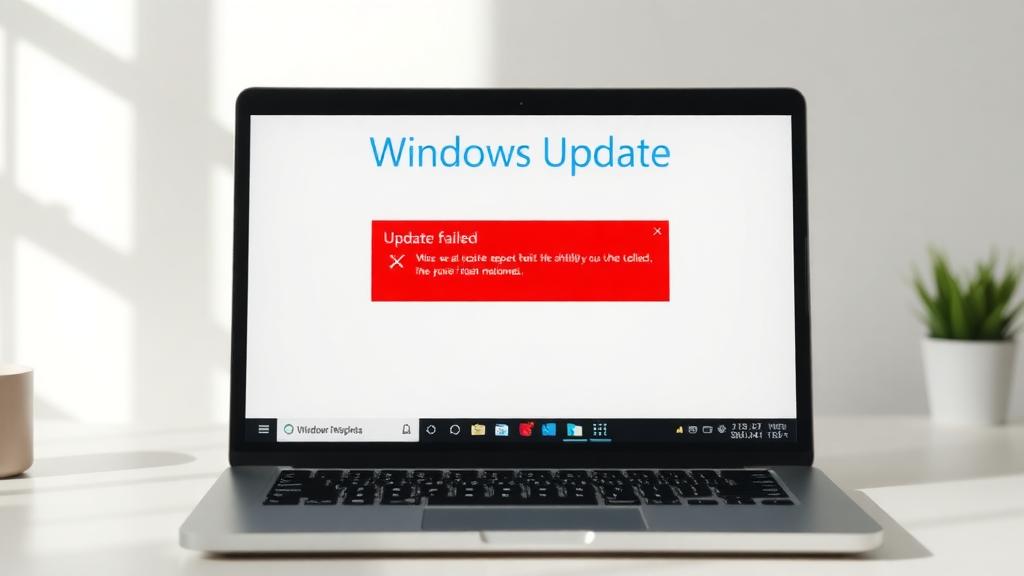
A cryptic error message stating “Windows Update Failed” is one of the most common and frustrating roadblocks for PC users. One minute you’re installing a routine security patch or a major new version like Windows 11, and the next you’re staring at a failure notice with a baffling code like 0x80070070 or 0x80070020. This can halt your workflow, leave your system vulnerable, and feel like a problem only a tech guru can solve. But in most cases, the fixes are straightforward. This guide will demystify the common causes and walk you through practical, step-by-step solutions to get your updates flowing again.
The update process is complex; it checks for compatibility, downloads hundreds of files, and meticulously replaces system components. A single hiccup in internet connectivity, a full hard drive, or a conflicting piece of software can derail the entire operation. While macOS updates on an Apple computer or system updates on your Android or iPhone tend to be more monolithic and controlled, Windowsâ’ modular nature and vast hardware diversity make it more prone to these interruptions. Understanding the root cause is the first step to a successful windows update failed how to fix mission.
1. Insufficient Disk Space: The Storage Crunch
This is the silent culprit behind countless failed updates, especially major feature upgrades like those for Windows 11. Windows needs not just space for the new files, but also room to unpack, back up old system files, and create a recovery environment. If your C: drive is bursting at the seams, the update process has nowhere to go.
Error codes to watch for: 0x80070070, 0x80070008, or a generic “We couldn’t install the update because there isn’t enough space on your drive.”
How to Free Up Space for the Update
- Run Disk Cleanup: Type “Disk Cleanup” in the Start menu, select your main drive (usually C:), and let it scan. Check boxes for “Temporary files,” “Windows Update Cleanup” (this safely removes old update files), and “Delivery Optimization Files.”
- Uninstall Unused Programs: Go to Settings > Apps > Installed apps and remove large applications you no longer use.
- Move Media Files: Manually relocate photos, videos, and documents to an external hard drive or cloud storage.
- Use Storage Sense (Windows 11/10): Enable this automated tool in Settings > System > Storage to delete temporary files and empty the Recycle Bin periodically.
2. Corrupted System Files or Update Components
If the very tools Windows uses to update itself become corrupted, the process is doomed from the start. This can happen due to sudden power loss during a previous update, malware, or faulty storage sectors. Thankfully, Windows includes built-in repair utilities to tackle this.
Run the Windows Update Troubleshooter
This should always be your first port of call for any windows update error how to fix scenario. It’s an automated tool that diagnoses and attempts to repair common problems.
- Go to Settings > System > Troubleshoot > Other troubleshooters.
- Find “Windows Update” and click “Run.”
- Follow the on-screen prompts and apply any recommended fixes.
Repair System Files with Command Line Tools
If the troubleshooter doesn’t work, these powerful command-line tools are your next step.
- Right-click the Start button and select “Windows Terminal (Admin)” or “Command Prompt (Admin).”
- Run the System File Checker: Type
sfc /scannowand press Enter. This scans for and replaces corrupted Windows system files. - Run the DISM Tool: If SFC fails or finds corruption it can’t fix, type:
DISM /Online /Cleanup-Image /RestoreHealthand press Enter. This tool repairs the Windows image that SFC uses. - Restart your PC and try the update again.
3. Conflicting Software and Outdated Drivers
Third-party security software (especially older antivirus suites), niche hardware utilities, or even a recently installed app can interfere with the update process. Similarly, outdated drivers, particularly for storage controllers, can cause a windows 11 installation failed how to fix situation.
- Temporarily Disable Antivirus: Use the antivirus software’s system tray icon to temporarily disable real-time protection. Remember to re-enable it immediately after the update.
- Perform a Clean Boot: This starts Windows with only essential services and drivers, isolating software conflicts. Search for “System Configuration” (msconfig), go to the Services tab, check “Hide all Microsoft services,” then click “Disable all.” On the Startup tab, click “Open Task Manager” and disable all startup items. Restart and attempt the update.
- Update Drivers: Visit your PC manufacturer’s (Dell, HP, Lenovo) or motherboard manufacturer’s support website to download the latest chipset, storage, and network drivers. Install these before retrying the update.
4. Stuck or Corrupted Windows Update Services
Windows Update relies on background services to function. If these services stop, get stuck, or their associated cache files become corrupted, updates will fail.
Reset the Windows Update Components Manually
This multi-step process stops the services, clears the download cache, and restarts everything fresh.
- Open Command Prompt or Windows Terminal as Administrator.
- Type these commands one by one, pressing Enter after each:
net stop wuauservnet stop cryptSvcnet stop bitsnet stop msiserver - Next, rename the SoftwareDistribution and Catroot2 folders (where update files are stored) by typing:
ren C:\Windows\SoftwareDistribution SoftwareDistribution.oldren C:\Windows\System32\catroot2 Catroot2.old - Restart the services with these commands:
net start wuauservnet start cryptSvcnet start bitsnet start msiserver - Close the terminal, restart your PC, and check for updates again.
5. Specific Update Error Codes and Their Fixes
Sometimes Windows is kind enough to give you a specific error code. Hereâ’s how to tackle a few frequent offenders.
Error 0x80070020 (A Process is Using a File)
This indicates a file needed for the update is locked by another program. A simple restart can often free it up. If that fails, perform a Clean Boot (as described in section 3) to prevent non-essential software from locking files.
Error 0x80240438 (CBS Download Failure)
This is often a network-related download failure. Reset your

For more details, see Microsoft’s official Windows Update troubleshooter.