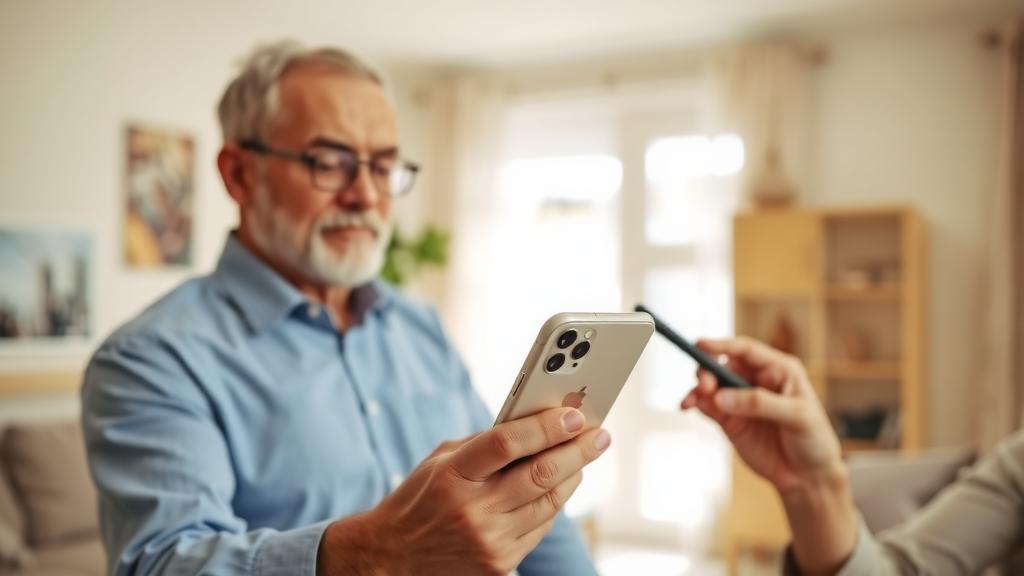
How to Use a Smartphone for the First Time: A Simple Beginner Guide
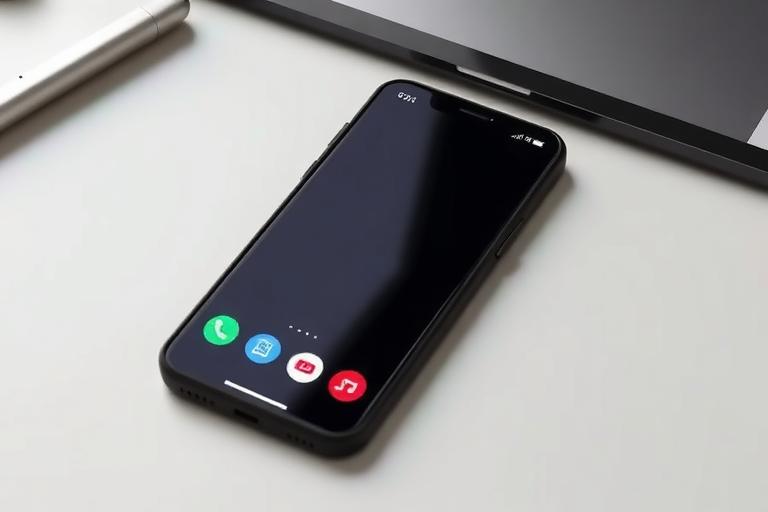
For someone holding a smartphone for the very first time, it can feel like youâ’ve been handed the controls to a spaceship. The screen is lit up with unfamiliar symbols, there are no clear buttons to press, and a single wrong tap might feel like it will break something. This initial intimidation is completely normal, but itâ’s also completely unnecessary. Smartphones are designed to be intuitive, and with a few foundational steps, anyone can learn to use one confidently. This step-by-step guide is designed to walk complete beginners through the absolute basicsâ—from turning the device on to making your first callâ—in a simple, stress-free way. Letâ’s shift that powerful pocket computer from a source of anxiety to a tool of connection and convenience.
First Boot: The Initial Setup Wizard
When you power on your new phone (hold the side button for a few seconds), the first thing youâ’ll see is a setup wizard. This is your phoneâ’s way of holding your hand through the essentials. Follow these prompts carefully.
Connecting to Wi-Fi and Setting Up Accounts
The wizard will first ask you to connect to a Wi-Fi network. Choose your home network from the list and enter the password (usually found on your router). A strong Wi-Fi connection is crucial for the next steps: setting up your accounts.
- Android phones will ask you to sign in with a Google Account (like a Gmail address). This account is your key to the phoneâ—it syncs your contacts, email, and lets you download apps.
- iPhones will ask you to sign in with an Apple ID. If you donâ’t have one, you can create it during this process. It serves the same core purpose as a Google Account.
This step ties your identity to the phone and is essential for backing up your data.
Mastering the Physical Basics: Buttons and Gestures
Before diving into apps, you must speak the phoneâ’s â“languageâ”: its physical buttons and touchscreen gestures.
Understanding the Key Buttons
Most smartphones have just a few buttons:
- Power/Side Button: Press to wake the screen or put it to sleep. Press and hold to turn the phone off completely or activate the voice assistant (like Google Assistant or Siri).
- Volume Buttons: Located on the side, these control ringtone, media, and call volume.
- Home Button/Fingerprint Sensor (if present): On some Android models, this is a physical or capacitive button below the screen. On modern iPhones and many Androids, the entire screen is the â“homeâ” area.
Essential Touchscreen Gestures
You control everything by touching and swiping the screen.
- Tap: A single, quick press to select an item, open an app, or press an on-screen button.
- Press and Hold: Touch and keep your finger on an item to see more options (like saving a picture or moving an app icon).
- Swipe: Drag your finger across the screen to scroll through lists, switch between pages of apps, or view notifications.
- Pinch-to-Zoom: Place two fingers (like thumb and forefinger) on the screen and pinch them together to zoom out, or spread them apart to zoom in, perfect for maps or photos.
Navigating the Home Screen and Basic Settings
The Home Screen is your starting point. Itâ’s filled with app icons (small pictures that launch programs) and usually has a dock at the bottom for your most-used apps.
- To open an app: Simply tap its icon.
- To return to the Home Screen: Swipe up from the very bottom of the screen (on modern iPhones and most Androids) or press a physical Home button.
- To switch between open apps: Swipe up from the bottom and hold (on most phones) to see all your recently used apps, then tap one to switch to it.
Critical Settings to Check First
Open the Settings app (it looks like a gear icon). Here are the first things to configure:
- Sound & Notifications: Set your ringtone and adjust volume levels.
- Display & Brightness: Adjust screen brightness and set the screen to lock after a period of inactivity (for security).
- Battery: See whatâ’s using your power. Enabling a Battery Saver mode can be a lifesaver.
- Security & Biometrics: Set up a screen lock immediately. Use a PIN/password youâ’ll remember, and if your phone supports it, set up fingerprint or face unlock for convenience.
How to Use a Smartphone for Beginners Step by Step: Core Tasks
Now for the practical part. Letâ’s walk through the most common tasks.
Making Your First Phone Call
- Open the Phone app (icon usually looks like a handset).
- Youâ’ll see a keypad with numbers. Tap the numbers of the phone number you want to call.
- Tap the green call button.
- To end the call, tap the red end button.
Sending Your First Text Message
- Open the Messages app (icon looks like a speech bubble).
- Tap the compose button (usually a pencil inside a circle or a â“+â” sign).
- In the â“Toâ” field, start typing a contactâ’s name or tap the contact icon to choose someone from your list.
- Tap in the text field at the bottom, type your message using the on-screen keyboard, and tap the send button (usually a paper plane or arrow).
Taking and Viewing a Photo
- Open the Camera app (icon looks like a camera).
- Point the phone at what you want to photograph. Youâ’ll see it on the screen.
- Tap the large round button at the bottom to take the picture.
- To view it, usually tap a small thumbnail preview in the corner of the camera screen, or find the Photos app in your app list.
Getting Connected: Adding Contacts and Using the Internet
A phone isnâ’t useful without people to connect with.
Adding a Contact
- Open the Contacts or Phone app and find the Contacts tab.
- Tap the â“+â” or â“Addâ” button.
- Enter the personâ’s name and phone number. You can add email, address, and more.
- Tap â“Save.â” Now you can call them just by tapping their name.
Browsing the Web

For more details, see Google’s Android basics guide.